If you’ve just tried to log into your Google Workspace account only to be met with a screen saying “Your sign-in settings don’t meet your organisation’s 2-Step Verification policy,” you are likely stuck in what I call the “Infinite Loop of Doom.”
You click ‘Try Again,’ you enter your password, and… you’re right back at the same error message.
It’s frustrating, it’s stressful, and if you’re the only administrator, and this is your only account, it means your operations have come to a screeching halt.
The Solution For Locked-Out Admins
(Looking for help with a locked-out user? Jump to here).
If you find yourself stuck, don’t panic. Google offers a ‘secret weapon’ for administrators via the Google Admin Toolbox.
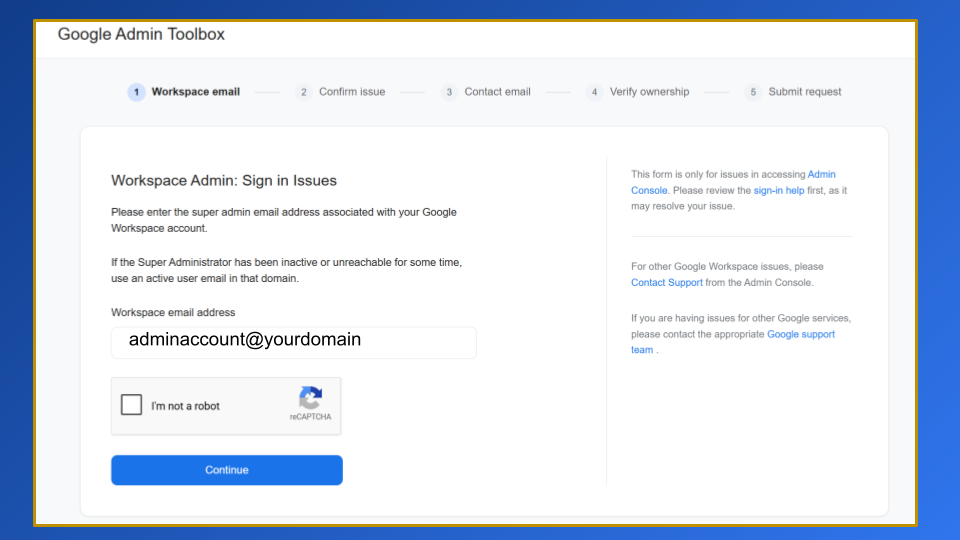
Step 1- Initiate the request: Open the Google Admin Toolbox in a new tab, enter your admin email address and confirm you aren’t a robot.
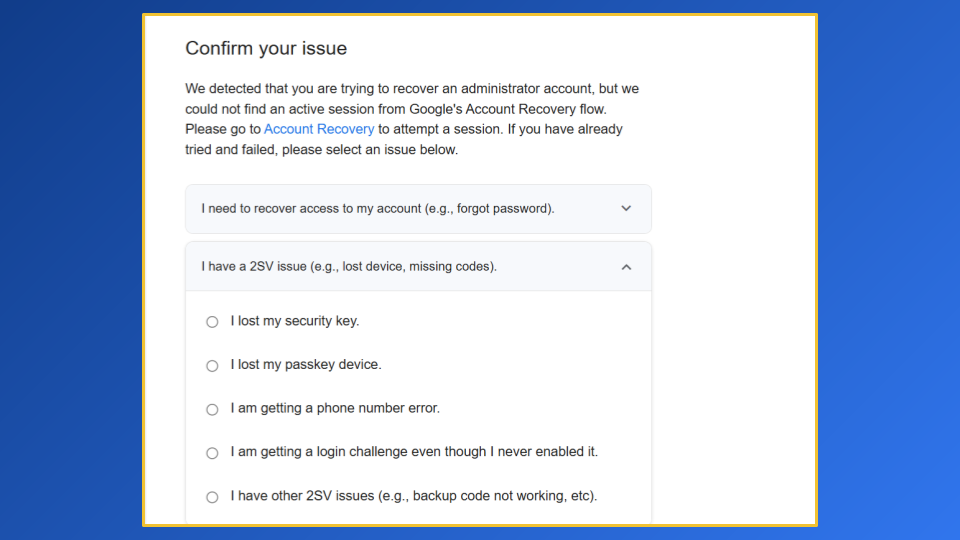
Step 2 – Confirm the issue: Select ‘I have a 2SV issue’ from the list. If you aren’t sure exactly why you’re having this problem just pick any option to get the request going.
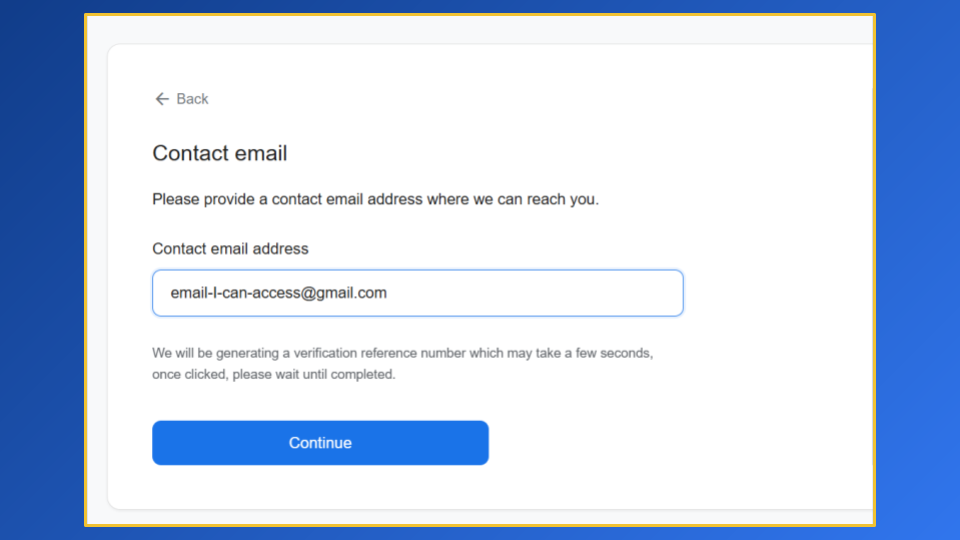
Step 3 – Enter contact details: This emails needs to be completely outside your Google Workspace domain (a personal Gmail is perfect).
Google Support will send additional verification information requirements to that email address so make sure you can actually access it.
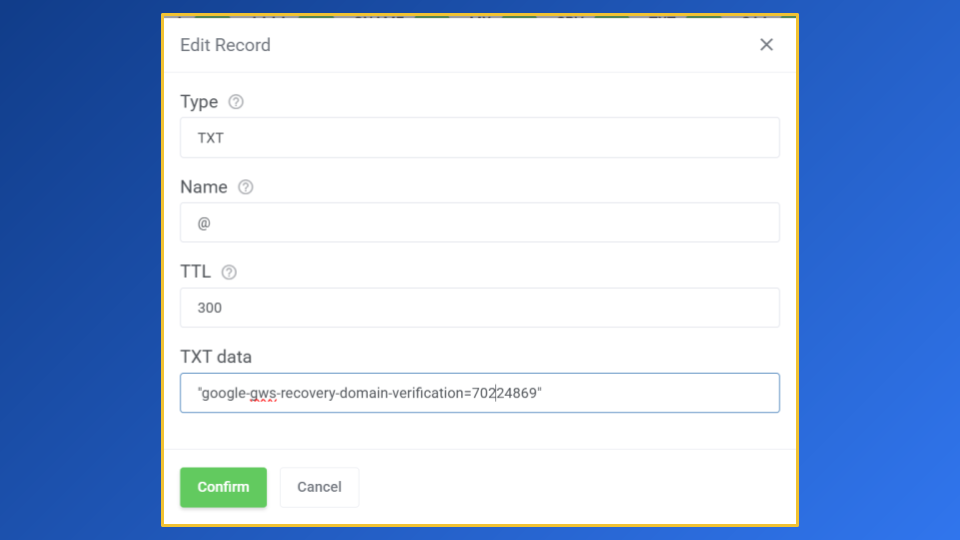
Step 4 – Prove you own the domain: Google will provide a specific string of code that you need to add as a TXT record to your domain’s DNS records (e.g. at your registrar like Digital Pacific or GoDaddy).
Pro Tip: make sure the Time to Live (TTL) is as low as you can make it – 300 is usually a good value to select.
Step 5 – Submit your verification: Once you’ve added the record, come back to the Google Admin Toolbox tab and click on I have added the record.
Then click on Submit request.
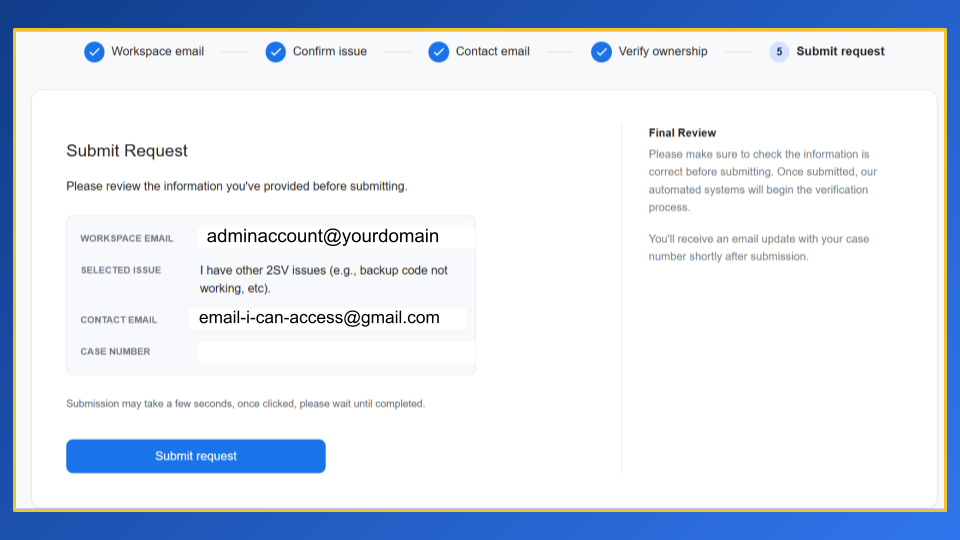
Step 6 – Answer knowledge questions: Check your contact email inbox for immediately for a follow-up email from Google support with questions about the Google Workspace account.
Step 7 – Wait: Now you need to wait for Google Support to manually confirm your DNS record and knowledge question answers.
Once they’ve done this, they’ll provide you with a one-time code that can be used to regain access to the account.
The Solution For Your Users
If you can get in as the Admin, but one of your team members is locked out, you can fix this in 60 seconds:
- Log into your Google Admin Console.
- Go to Directory > Users.
- Select the locked-out user.
- Click Security > 2-Step Verification.
- Click Get Backup Verification Codes. Copy these and give them to your user.
- Alternatively, you can click “Allow user to trust this device” or temporarily move them to an Organisational Unit (OU) where 2SV is not yet enforced (though I don’t recommend this for long-term security).
Prevention: How to stop this from happening again
Once you regain access, do not just go back to “business as usual.” You need to “hard-code” your backup plan:
- Generate Backup Codes: Every admin should have a physical printout of their 10-digit backup codes stored in a safe or a physical file.
- Set Up a Backup Admin: Never have just one Super Admin. Create a second “Emergency Admin” account with a different phone number attached – you can do this for free!.

Hi, I’m Priya! I’m a certified Google Workspace Administrator and Product Expert who speaks ‘human’, not I.T.
I help small business owners stop wrestling with their Google Workspace and start using it to grow.


Leave a Reply