So this is a problem we see often in the Google Workspace Admin support forum:
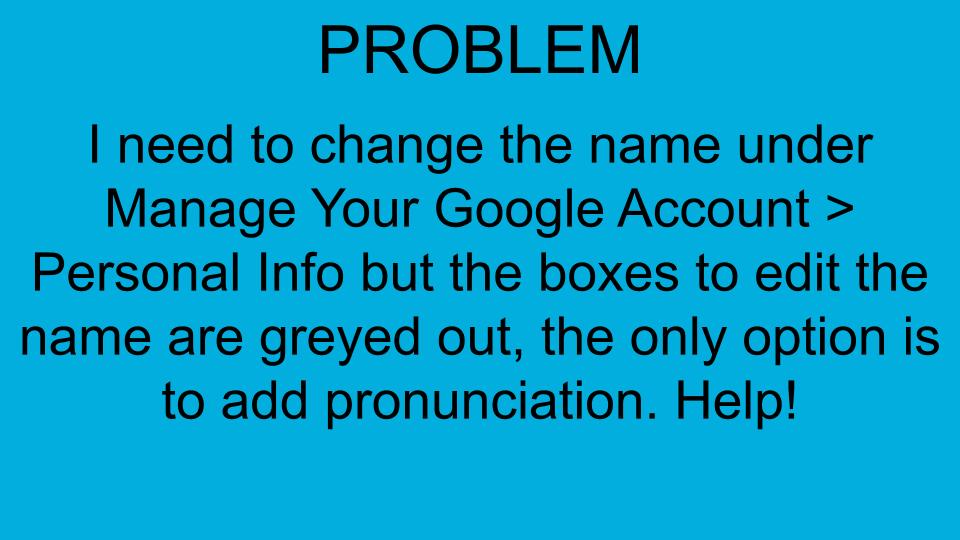
Basically in this situation, the administrator has prevented the user from changing their details. There’s two solutions here:
Change user details in Admin Console
Change settings so user can make changes themselves
Option 1: Change user details in Admin Console
- In your Google Admin console (at admin.google.com)…
- Go to Menu Directory > Users.
- In the Users list, find the user.
- Click on Rename User.
- Change the First name or Last name—The name that shows up in emails they send, calendar invites, and other Google services.
Tip: You can enter a company name instead of a person’s name. This is handy if you want your company name to appear instead of your personal name - Click Update User.
Option 2: Give users the right to change their own information
Alternatively if you’re happy for users to change some or all of their personal information, then do the following:
- In your Google Admin console (at admin.google.com)…
- Go to Menu Directory > Users.
- Click on More options in the top right and click on Allow users to edit profile
You can then choose which pieces of information they can update and then click on Save.

Hi, I’m Priya! I’m a certified Google Workspace Administrator and Product Expert who speaks ‘human’, not I.T.
I help small business owners stop wrestling with their Google Workspace and start using it to grow.
Leave a Reply